Let's Encrypt#
Exchange Certificate Manager can issue free certificates from Let's Encrypt, install and assign them on your servers, and renew them automatically.
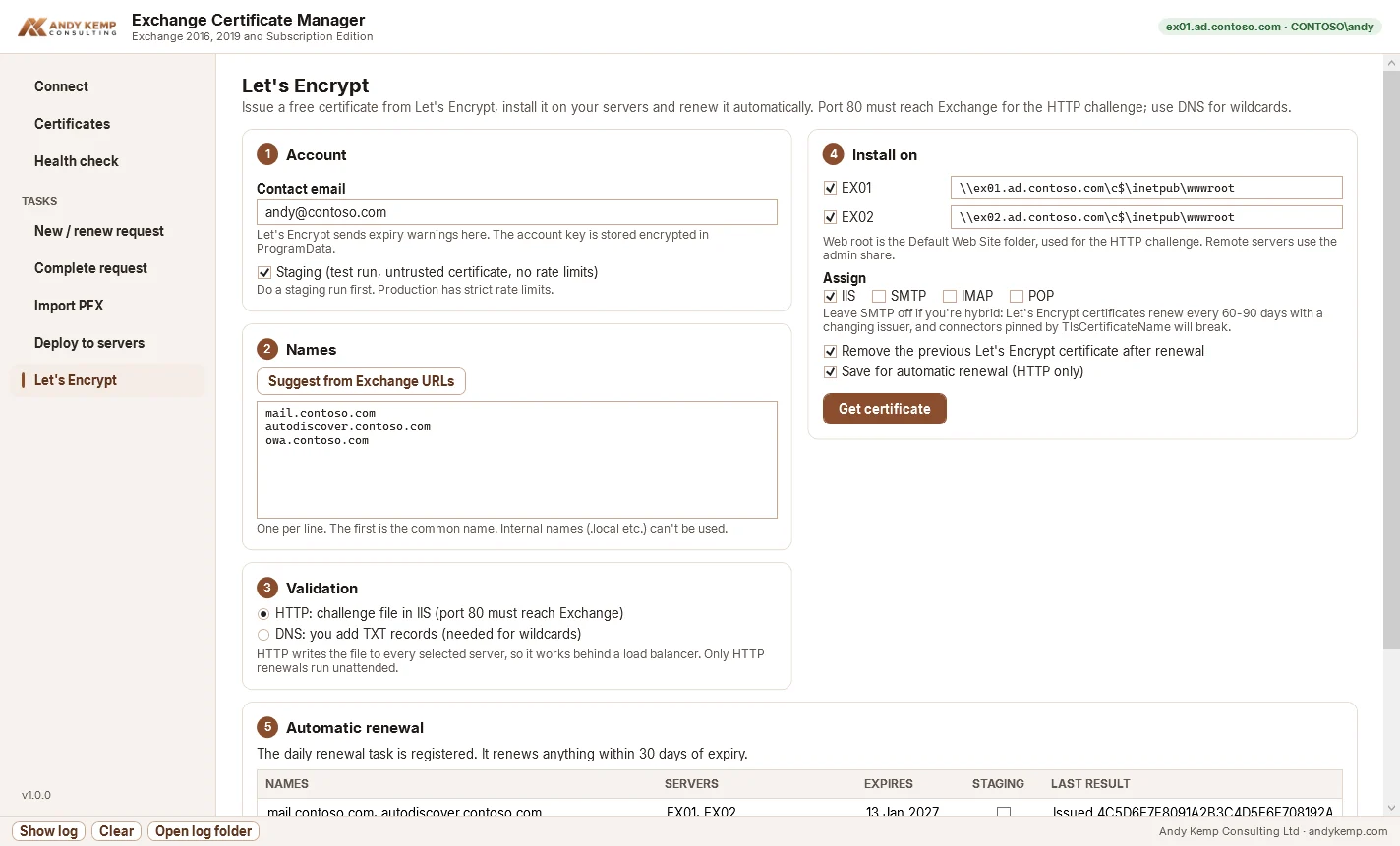
Before you start#
- Public names only. Let's Encrypt only issues for names in public DNS. Internal names such as
ex01.ad.contoso.localcan't be included: change those URLs to public names (split DNS), or use an internal CA for them. - For HTTP validation, port 80 must reach Exchange from the internet for every name, directly or through your load balancer or firewall.
- For wildcards, use DNS validation.
- Do a staging run first. Staging gives you an untrusted test certificate with no rate limits, so you can prove the whole flow before using production, which has strict limits.
Issuing a certificate#
- Account: enter a contact email. Let's Encrypt sends expiry warnings there. The account key is created the first time, encrypted and kept in
C:\ProgramData\ExchangeCertManager, which only Administrators and SYSTEM can read. - Names: click Suggest from Exchange URLs (internal-only names are left out), or type them one per line. The first is the common name.
- Validation: HTTP or DNS (see below).
- Install on: tick the servers. For HTTP validation each server has a web root: the Default Web Site folder,
C:\inetpub\wwwrootby default, reached through thec$admin share for remote servers. Change it if your Default Web Site lives elsewhere. - Assign: IIS is ticked by default. See Hybrid and SMTP before ticking SMTP.
- Click Get certificate, check the summary and confirm.
The app orders the certificate, completes the challenges, builds the certificate with its full chain, imports it on every ticked server and assigns the services.
HTTP or DNS validation#
| HTTP | DNS | |
|---|---|---|
| How it proves the name | A file at http://<name>/.well-known/acme-challenge/ |
A TXT record at _acme-challenge.<name> |
| What you do | Nothing: the app writes the file | Add the TXT records it shows, then click Continue |
| Wildcards | No | Yes |
| Automatic renewal | Yes | No (the records change every time) |
| Needs | Port 80 reaching Exchange | Access to your public DNS |
HTTP behind a load balancer: the challenge file is written to every ticked server, so validation works whichever server answers. A small web.config in the challenge folder turns off the HTTP redirect that many Exchange builds put on the Default Web Site (to /owa or HTTPS), so Let's Encrypt can read the file. The files are removed once validation finishes.
DNS: the app shows each record's name and value with Copy buttons. Add them in your public DNS, wait until they resolve (nslookup -type=TXT _acme-challenge.contoso.com 8.8.8.8), then click Continue.
Hybrid and SMTP#
Leave SMTP unticked if you're hybrid with Microsoft 365. Let's Encrypt certificates are replaced every 60 to 90 days and the issuing intermediate can change. Connectors that name their certificate with TlsCertificateName (issuer plus subject), such as the hybrid connectors, stop matching when it changes, and mail flow to and from Microsoft 365 can break.
Keep a commercial certificate on SMTP, or check the Mail flow health check after every renewal.
Automatic renewal#
Tick Save for automatic renewal (HTTP only) when you issue the certificate. The details are saved in C:\ProgramData\ExchangeCertManager\renewals.json and listed under Automatic renewal.
Then register the daily task once:
- Enter the account the task runs as. Use a dedicated service account with the same Exchange rights as you (Organization Management, or the Exchange Server Certificates role) and local administrator on this machine.
- Enter its password and click Register task.
The task, Exchange Certificate Manager - Let's Encrypt renewal, runs every night (around 3:15, with a random delay of up to 45 minutes). For each saved certificate within 30 days of expiry it:
- connects to Exchange as the task account,
- issues a new certificate over HTTP,
- imports it on the same servers and assigns the same services,
- removes the previous Let's Encrypt certificate, if you left Remove the previous Let's Encrypt certificate after renewal ticked (the Exchange Auth certificate is never removed).
Each run is written to C:\ExchangeCertManager\Logs, and the result shows under Last result. Select a saved certificate to Renew selected now or Stop renewing selected.
Tip
The task runs ExchangeCertManager.exe --renew-acme from wherever the app was when you registered the task. Keep it in a permanent folder, and register the task again if you move it. To renew everything straight away, whatever the expiry, run ExchangeCertManager.exe --renew-acme --force.