Quick start#
From download to a health check of your Exchange certificates in a few minutes.
What you need#
- A domain-joined Windows machine: an Exchange server, or an admin workstation or jump box
- An account with Organization Management, or a role group that includes the Exchange Server Certificates role
http://<server>/PowerShellreachable from that machine (it is, on an Exchange server)
See Requirements for the full list, including what Let's Encrypt needs.
Step 1: Download the app#
Download ExchangeCertManager.exe from the Releases page and copy it somewhere permanent, such as C:\ExchangeCertManager.
It's a single self-contained file: no installation and no .NET runtime needed.
Tip
Keep it in a permanent folder. If you set up automatic Let's Encrypt renewal, the scheduled task runs the app from wherever it is when you register the task.
Step 2: Start it#
Double-click ExchangeCertManager.exe and accept the elevation prompt. It needs administrator rights to write Let's Encrypt challenge files into IIS and to register the renewal task.
Step 3: Connect#
On the Connect page:
- Enter the FQDN of any Mailbox server, for example
ex01.ad.contoso.com. On an Exchange server it's filled in for you. - Leave Use my current Windows sign-in ticked, or untick it to enter another account.
- Click Connect.
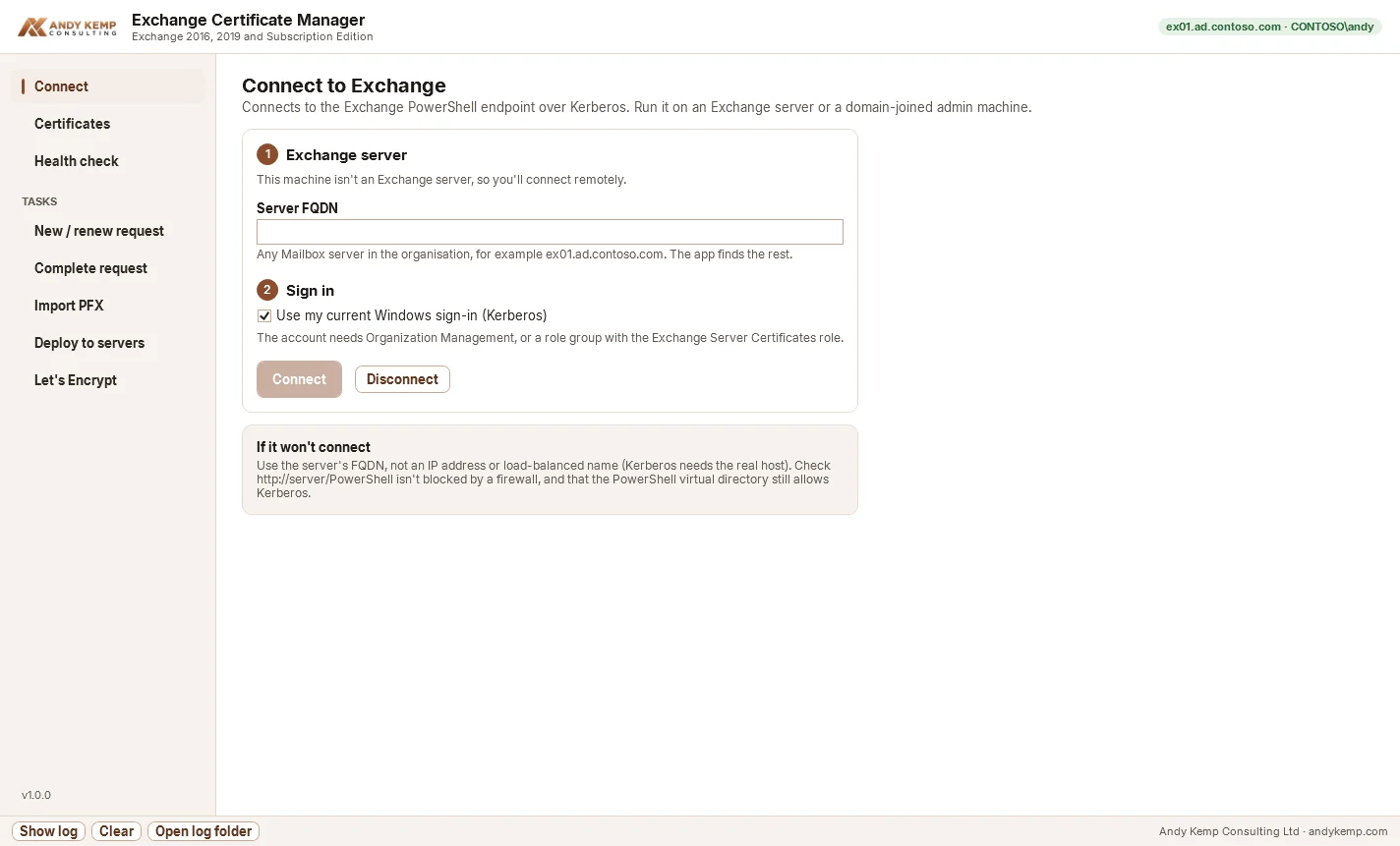
The app finds every Exchange server in the organisation and reads their certificates. Edge Transport servers aren't listed: they can't be reached over the Exchange PowerShell endpoint.
Step 4: Look at your certificates#
The Certificates page lists every certificate, with how long it has left, who issued it, which servers hold it and which services each server uses it for. Self-signed certificates are hidden unless you tick Show self-signed (the Exchange Auth certificate is always shown).
Select a certificate to see its names and thumbprint, and to assign services, renew, export, deploy or remove it.
Step 5: Run the health check#
Open Health check. It runs automatically the first time and lists problems first: certificates that have expired or are about to, the Exchange Auth certificate, names your URLs use that the IIS certificate doesn't cover, connectors pinned to a missing certificate, and clean-up candidates. See Health checks for what each one means.
Next steps#
- Renewing a commercial certificate: New or renewal request, then Complete request
- Moving to Let's Encrypt: Let's Encrypt
- Already have a
.pfx: Import PFX