Accepted domains#
The Accepted domains page shows the domains Exchange accepts mail for and the email address policies that give everyone their addresses. It also does the two jobs that are easy to get in the wrong order: changing the default domain, and retiring an old one such as the AD domain.
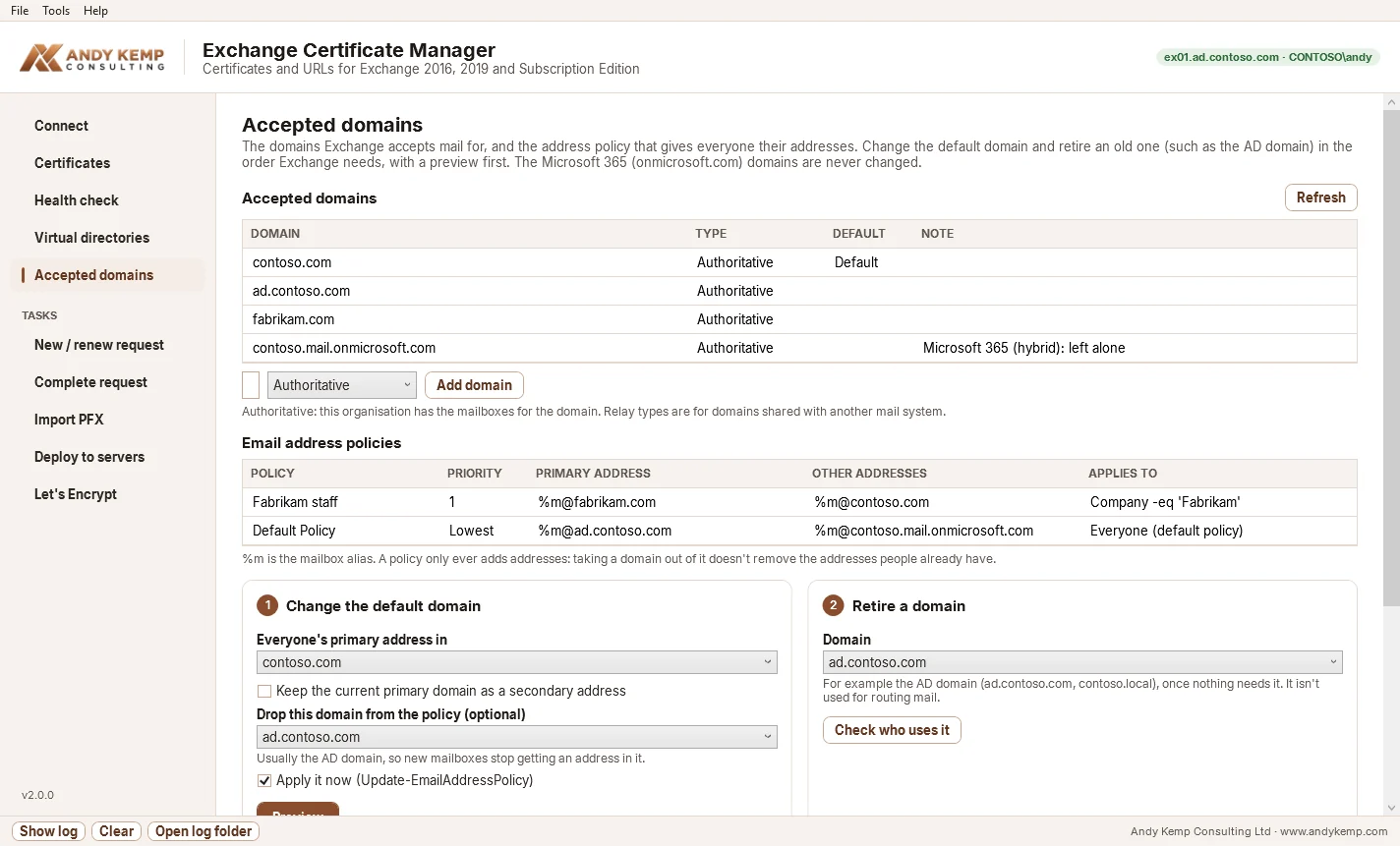
The Microsoft 365 domains (*.onmicrosoft.com) are never changed or removed, and their policy templates are always kept: the Hybrid Configuration Wizard and mailbox moves depend on them.
Adding a domain#
Type the domain, choose the type and click Add domain.
- Authoritative: this organisation holds the mailboxes for the domain. The usual choice.
- Internal relay and External relay: for a domain shared with another mail system.
Remember the domain's MX and SPF records in public DNS if it's going to receive mail, and the certificate names (Autodiscover) if clients will use it.
Changing the default domain#
On a new build, or after a rebrand, everyone's primary address should be in the public domain, not the AD domain. Exchange needs this done in order, so Change the default domain does it as one plan:
- Make the domain the default accepted domain (
Set-AcceptedDomain -MakeDefault). - Change the default email address policy so the primary address is
%m@yourdomain(Set-EmailAddressPolicy). You choose whether to keep the old primary domain as a secondary address, and you can drop a domain from the policy (usually the AD domain) so new mailboxes stop getting an address in it. - Apply the policy (
Update-EmailAddressPolicy), which gives everyone it covers the new primary address. Existing addresses are kept.
Preview shows every step and the exact command before anything changes. Applying the policy touches every mailbox, group and contact it covers, so in a large organisation it takes a while; untick Apply it now to apply it later yourself.
A policy only ever adds addresses
Taking a domain out of the policy stops new addresses being created in it. Addresses people already have stay until they're removed, which is what Retire a domain is for.
Retiring a domain (such as the AD domain)#
An internal AD domain (contoso.local, ad.contoso.com) is often an accepted domain from the day Exchange was installed. It isn't used to route mail, nobody outside can send to it, and in hybrid its addresses are dropped in Exchange Online anyway, so it's normally safe and tidy to remove. Pick it under Retire a domain and click Check who uses it. The app looks at:
- address policies that still use it (these block removal: change the default domain first, with the domain in Drop),
- primary addresses in it, including the system (arbitration) mailboxes (these also block removal: apply the policy first),
- secondary addresses in it (a warning: mail to those addresses stops once the domain is gone),
- send connectors that mention it (check those by hand).
Then:
- Remove leftover addresses… removes the secondary addresses in that domain from every recipient, after showing you the list. Primary addresses aren't touched.
- Remove accepted domain… removes it (
Remove-AcceptedDomain). It's only available when no policy and no primary address uses it.
Before removing it, it's worth checking for old applications, scanners or devices that send to @ad… addresses: the check can't see those.