Expiry alerts#
The Alerts page sends email reminders before any Exchange certificate expires, whichever CA it came from, and tells you when a Let's Encrypt renewal fails. Every reminder and failure also goes to the Windows event log, so the monitoring you already have can pick it up.
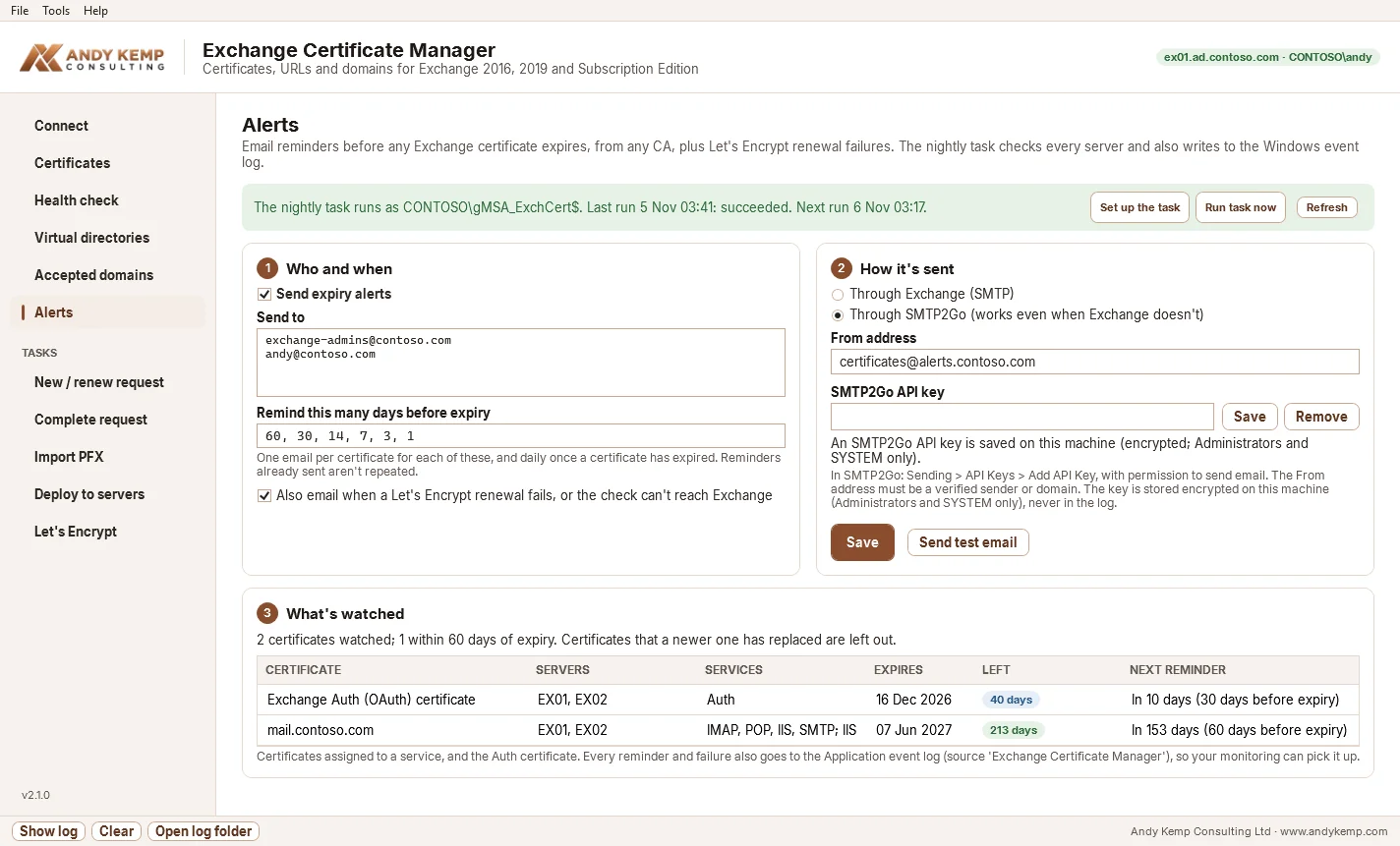
The checking is done by the same nightly task that renews Let's Encrypt certificates. Alerts don't need any Let's Encrypt certificates, but they do need that task: if it isn't set up, the bar at the top of the page says so, and Set up the task takes you to where you register it (the Let's Encrypt page, section 5).
Who and when#
- Send to: one or more email addresses. A shared mailbox or distribution group for the team works well.
- Remind this many days before expiry:
60, 30, 14, 7, 3, 1by default. A certificate gets one email for each of these as it reaches it, then one a day once it has expired, until it's replaced. Reminders already sent aren't repeated, however often the task runs. - Also email when a Let's Encrypt renewal fails, or the check can't reach Exchange: on by default. These come every night until they're fixed.
What's watched#
Every certificate that's assigned to a service (IIS, SMTP, IMAP or POP) on any server, and the Exchange Auth certificate. A certificate that a newer one has replaced, with the same names and also in use, is left out, so you aren't reminded about one you've finished with. The table shows each one, how long it has left, and when its next reminder will be.
How it's sent#
Through Exchange (SMTP)#
The alert goes to an Exchange server over SMTP, port 25 by default.
Exchange won't take anonymous mail that claims to come from one of its own accepted domains, and it won't relay anonymous mail to outside addresses. So pick one of these:
| Option | What it needs |
|---|---|
| Sign in with the Windows account | The task's account (or you, for a test) signs in to SMTP. It needs a mailbox, or Send As on the From address. |
| A From address outside your accepted domains | For example [email protected], for recipients in your own organisation. |
| A relay receive connector | A receive connector that lets this server's IP address relay. The usual choice if you already have one for printers and applications. |
Use TLS (STARTTLS) is on by default. If TLS fails because of the certificate (the very thing an alert might be about), the alert is sent without TLS rather than not at all, and the log says so.
Through SMTP2Go#
SMTP2Go sends the alert over HTTPS, so it arrives even when Exchange itself is the problem: an expired certificate, a broken transport service or a server that's down. Use it if alerts matter, or if Exchange can't send them for you.
- In SMTP2Go, verify the domain or the address you'll send from (Sending > Verified Senders).
- Create an API key with permission to send email (Sending > API Keys).
- Paste it on the Alerts page and click Save. It's stored encrypted on this machine (Administrators and SYSTEM only) and never logged, like the Cloudflare token.
Testing it#
Send test email sends a test straight away, as you. At night the task sends as its own account, so after a test, click Run task now and check the log: it sends any reminders that are due and records anything that failed.
The event log#
Everything also goes to the Application log, source Exchange Certificate Manager:
| Event ID | Level | Meaning |
|---|---|---|
| 1000 | Information | The check ran (every night, with how many certificates it watched) |
| 1001 | Warning | A certificate is within a reminder window |
| 1002 | Error | A certificate has expired |
| 1003 | Error | A Let's Encrypt renewal failed |
| 1004 | Error | The check couldn't read the certificates (for example, it couldn't connect to Exchange) |
| 1005 | Error | The alert email couldn't be sent |
| 1010 | Information | An alert email was sent |
Point Microsoft Sentinel, Azure Monitor, SCOM or any other monitoring at these and you'll hear about an expiring certificate even if the email doesn't arrive.
A task that stops running can't report itself
If the nightly task stops running altogether, nothing is checked and nothing is sent. The Alerts page warns you when the task hasn't run for more than two days. For monitoring, alert when event 1000 hasn't appeared for a day or two: it's written after every check, so its absence means the task isn't running.
Where it's stored#
The settings are in C:\ProgramData\ExchangeCertManager\alerts.json, with what's been sent in alerts-state.json and the SMTP2Go key in smtp2go.key (encrypted). The folder is readable only by Administrators and SYSTEM.