Build your card#
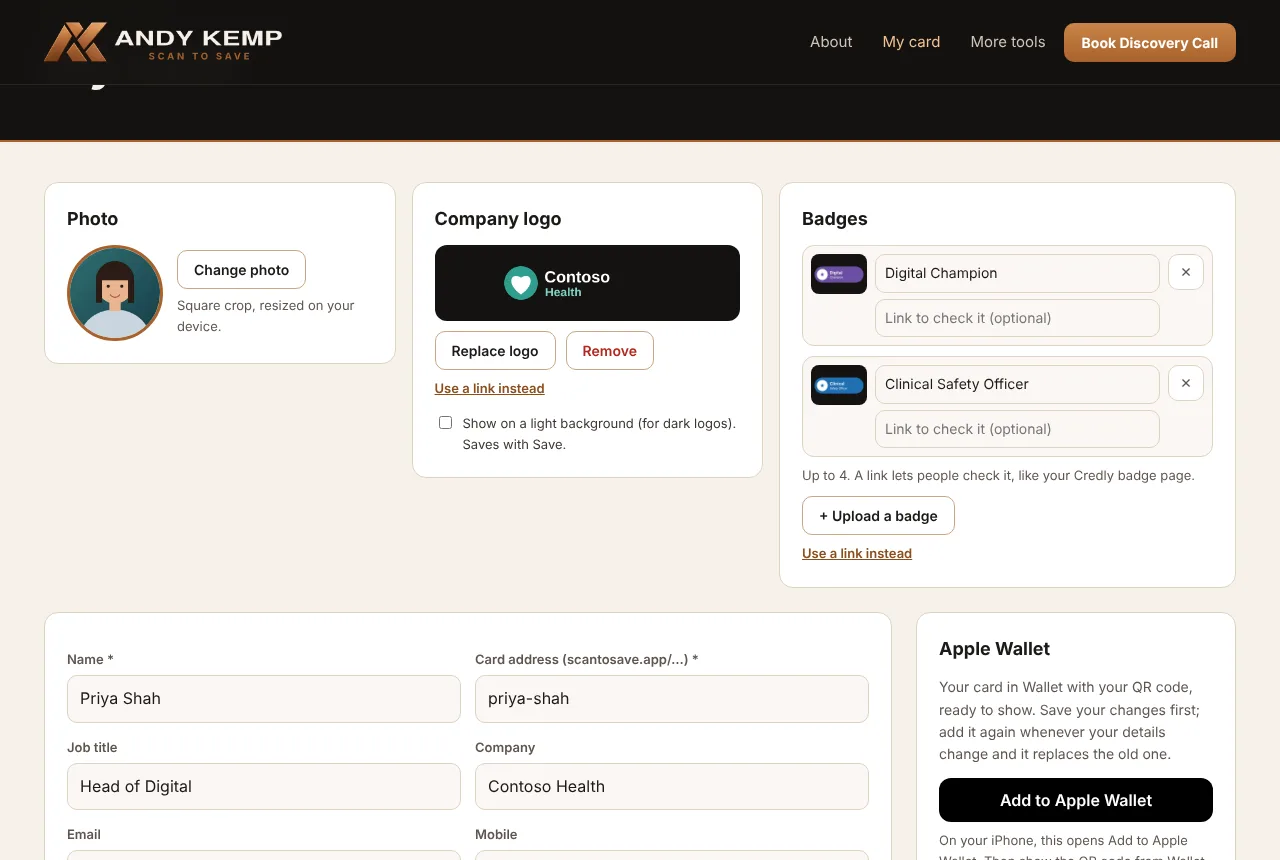
Everything is on My card at scantosave.andykemp.com/my. Photo, company logo and badges are at the top. Your details, WhatsApp and links are below. Press Save when you've finished, then View my card to see it as other people do.
Photo#
Upload photo and pick a picture. It's cropped square and resized on your device before it's uploaded, so a large photo from your phone is fine. Your photo shows in a circle on your card, and goes into the contact people save.
Company logo#
The logo goes at the top of your card. If you don't add one, the top stays clear.
- Upload logo: PNG, JPEG, WebP or SVG. A wide logo works best.
- Use a link instead: paste the address of the logo image on your company's website. Scan to Save fetches it for you. Right-click the logo on the website and choose Copy image address (on a phone, press and hold the logo).
- Show on a light background: tick this if your logo is dark and hard to see on the dark card. It saves with Save.
Badges#
Up to four badges, shown under your name: certifications, awards, memberships.
- Upload a badge, or Use a link instead and paste the address of the badge image, for example from Credly.
- Give each badge a name: it's what screen readers say and what shows if the picture can't load.
- Add a link if you like, so people can check it, such as your Credly badge page.
- Press Save after changing a name or link. × removes a badge straight away.
Badges such as Microsoft MVP are added for you by Andy Kemp Consulting.
Your details#
| Field | Notes |
|---|---|
| Name | Required. |
| Card address | Your public address, scantosave.app/your-name: lower-case letters, numbers and hyphens, up to 40. Some words are kept for Scan to Save itself. |
| Job title | Shown under your name. If it's empty, your company is shown instead. |
| Company | Saved to the contact. |
| Email, mobile, office phone | Each one becomes a button on your card and goes into the contact. Include the country code on numbers, for example +44 7700 900123. |
| Website | Type it with or without https://. |
| Short bio | Up to 600 characters, at the bottom of your card. |
WhatsApp#
Tick Add a "Message me on WhatsApp" button. It uses your mobile number unless you type another one. Give the country code: a UK number starting 07 is turned into +44 for you.
Links#
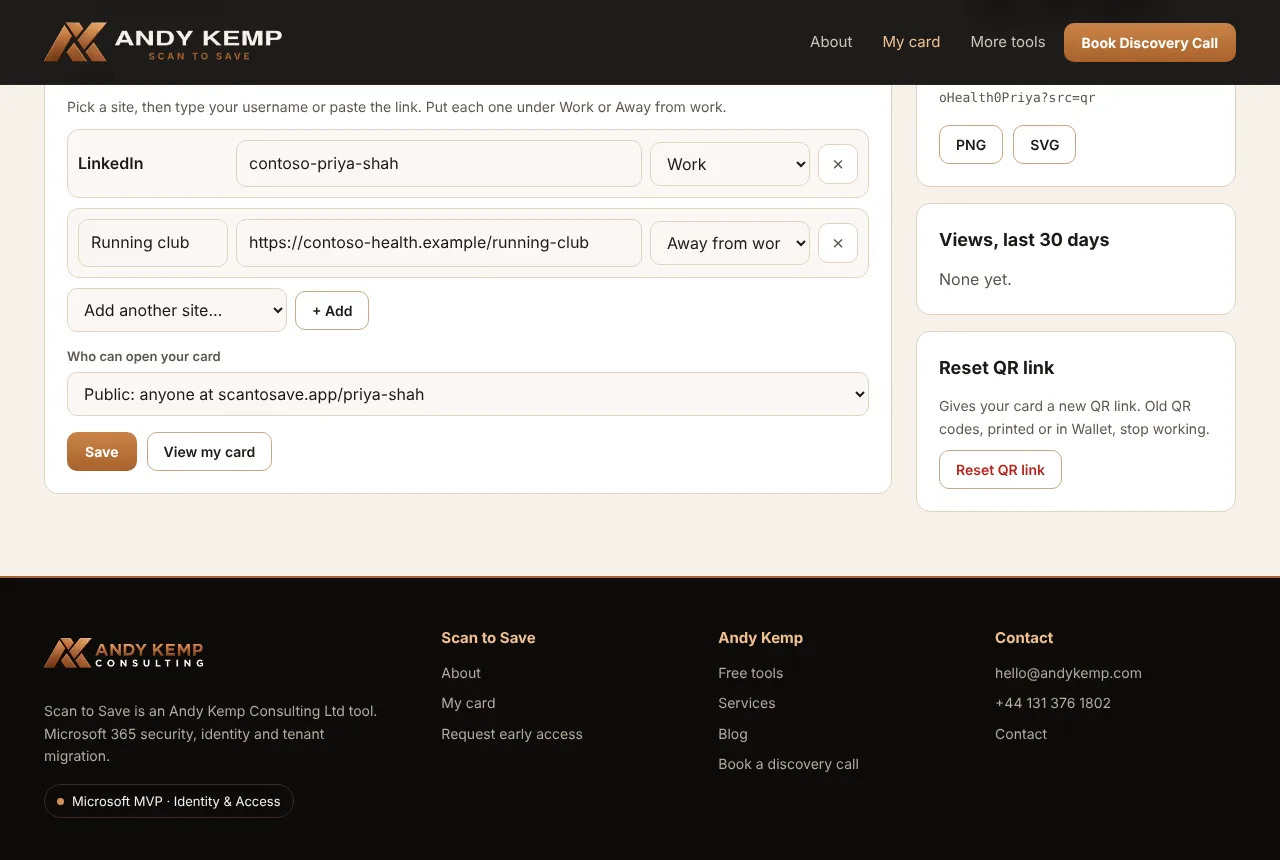
- Choose a site from the list: LinkedIn, GitHub, YouTube, Instagram, Strava and many more. Choose Another link for anything else, and give it a label.
- Type your username or paste the whole link. Either works: for LinkedIn,
jane-smithandhttps://www.linkedin.com/in/jane-smithare the same. - Choose Work or Away from work. Away-from-work links have their own section further down your card.
Each site can be added once. Add as many Another link entries as you need. If a link can't be used, the row turns red with the reason, and nothing is saved until it's fixed.
Who can open your card#
- QR only: only people with your QR code, or the link it contains, can open your card. This is the default.
- Public: anyone can open it at scantosave.app/your-name too.
See Share your card.